Active Directory provides several built-in tools for searching domain objects, including graphical management consoles, command-line tools, and PowerShell cmdlets. In this article, we’ll show you how to search for different types of Active Directory objects, including users, computers, groups, and Organizational Units (OUs), using both simple and advanced LDAP filters. You’ll also learn how to search by name using wildcards, patterns, and multiple search criteria.
The task of searching for objects in Active Directory (users, groups, or computers) by name using some pattern, regular expression, or wildcard is not as obvious as it seems. By default, the Active Directory Users and Computers (ADUC) snap-in does not support using the standard asterisk (*) wildcard at the beginning or in the middle of a search phrase.
For example, suppose you want to find all Active Directory groups whose names contain the keyword “SQL”. If you open the AD search console (Find User, Contacts, and Groups) in ADUC and perform a basic search for the sql keyword, the results may not be what you expect. By default, ADUC returns only users and groups whose names begin with the specified keyword. Objects whose names contain sql elsewhere in the string are not returned. Likewise, searching using the *SQL* query does not work. The ADUC search dialog does not interpret wildcard characters in the search field, so the asterisks are treated as literal characters rather than wildcard operators.

rundll32.exe dsquery,OpenQueryWindow
Search Active Directory Objects with Wildcards (ADUC)
To search for Active Directory objects matching a specific filter from the Active Directory Users and Computers (ADUC, dsa.msc) graphical console, you can use simple LDAP queries. These queries allow you to perform more flexible searches than the standard ADUC search dialog, including searches based on object attributes and partial matches.
- To do it, open the Find menu and select Custom Search in the dropdown list;
- Go to the Advanced tab;
- Type
name=*sql*in the Enter LDAP query field.
* before and after the keyword.If you only want to search for AD group objects, use the following LDAP query.
(&(objectcategory=group)(name=*sql*))

As you can see, this LDAP query returned many AD object types, including groups, computers, users, and gMSA service accounts.
To search for AD objects of a specific type only, specify this in the objectcategory value. For example, if you only want to search for group objects in AD, use the following LDAP query.
(&(objectcategory=group)(name=*sql*))
You can use advanced filtering options in the Active Directory Search console. To do this, enable the Filter option in the View menu and use the advanced filters to refine your search.

By selecting the View > Choose Columns menu option, you can add additional AD object attributes to filter the found objects by.
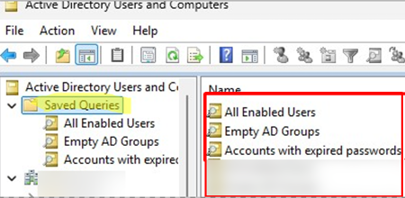
You can save frequently used search queries in the Saved Queries section of the ADUC snap-in so you don’t have to manually type the LDAP filters each time.
Here is an example of a more complex LDAP query: find all users in AD whose email address is blank (not filled):
(&(objectCategory=person)(objectClass=user)(!userAccountControl:1.2.840.113556.1.4.803:=2)(!mail=*) )
If you are using the Active Directory Administrative Center (dsac.exe) console to filter AD objects, LDAP queries can also be used for searches. Select Global Search and switch to Convert to LDAP mode. Enter your query in the LDAP query field.

Search Computer Objects in Active Directory
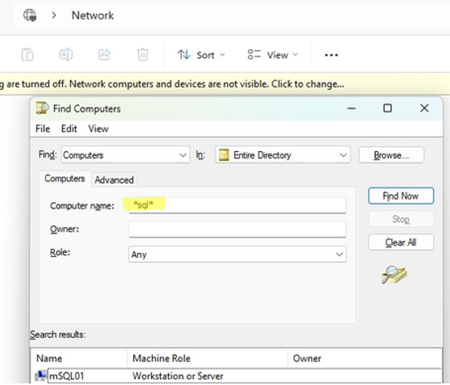
To search for computer and server accounts in Active Directory using an exact match, select Computers from the Find drop-down list, then specify the name of the computer to search for.

If you need to find computers in AD using a wildcard, you can apply the following LDAP query in the Custom Search -> Advanced section of ADUC.
(&(objectcategory=computer)(name=*sql*))
How to Search for Active Directory Objects Using PowerShell
The PowerShell module for Active Directory can be used to search for objects in AD from the command prompt. To search Active Directory for a particular type of object, use the appropriate cmdlet:
- Get-ADGroup – search for groups
- Get-ADUser – search for user accounts
- Get-ADComputer – search for computer account objects
To search for groups in AD using a wildcard, use the following PowerShell command:
Get-ADGroup -Filter {name -like "*sql*"} -Properties Description,info | Select Name,samaccountname,Description,info | Sort Name

Similarly, you can search by the username or the computer name. The examples of two such commands are given below. Additionally, in the second command, we specified multiple search criteria and restricted the search scope to a specific Organizational Unit (OU) by using the –SearchBase parameter.
Get-ADUser -Filter {name -like "*sql*"}
Get-ADComputer -Filter 'Name -like "*sql*" -and OperatingSystem -like "*Windows Server 2025*" -and Enabled -eq $true' -SearchBase "OU=DE,DC=woshub,DC=com"
If you don’t know exactly what type of object you’re looking for, you can run a general search across all Active Directory object types using the Get-ADObject cmdlet:
Get-ADObject -Filter {name -like "*sql*"} –Properties * | select sAMAccountName, ObjectClass, userPrincipalName, DisplayName, Description | FT
As you can see, the command returned all object classes in AD: computer, user, group, and msDS-GroupManagedServiceAccount objects.

Search only among Contact objects in the domain:
Get-ADObject -Filter 'ObjectClass -eq "contact" -and Name -like "*sql*"'
You can use the LDAP filter directly in the Get-ADObject command
Get-ADObject -LdapFilter "(&(objectCategory=person)(objectClass=user)(cn=*sql*))"
To find all AD Group Managed Service Accounts (MSA and gMSA), use the command:
Get-ADServiceAccount -Filter {name -like "*sql*"}
To search by Organizational Unit name, use the following cmdlet:
Get-ADOrganizationalUnit -Filter "Name -like '*stations*'"
In some cases, when you cannot install this module on a workstation but still need to perform a search in AD (for example, in a PowerShell logon script that is run via GPO), you can use the following syntax:
$searchuser="*sql*"
([adsisearcher]"(&(objectCategory=person)(objectClass=user)(displayname=$searchuser))").FindAll() |
ForEach-Object { $_.Properties.displayname }
I hope these easy methods will make it easier for you to search for objects in Active Directory.